As AI agents become more and more capable of writing code, writing clear specifications becomes even more important. Specifications describe how we want an application to behave, which is useful to define how to implement it, but also to test it actually does what it should!
Thanks for reading Didier’s Substack! Subscribe for free to receive new posts and support my work.
End-to-end tests (automated GUI tests) are neat because they are “automated manual tests”, simulating how a user actually interacts with your system. However, they sometimes get a bad rap because of the effort required to build (and maintain) them, proportionally to the benefits they bring. But what if you could create them much faster?
In this post, I’ll illustrate the workflow I use to create end-to-end tests for a web application, using tools like Claude Code, Playwright and its official MCP, and a library called Playwright-BDD. From a description of test scenarios with our own words, we let Claude Code do most of the work and get an end-to-end test implementation, with both a plain English version (for your PM!) and its associated Javascript/Typescript code to conduct the test.
Motivation
This started out from a frustration: as the development of Copilex (AI assistant for lawyers) progressed, I kept adding manual test scenarios to a “Pre-release checks” Notion page. And since we’re a small team with no QA tester, I’m the lucky one to inherit that pleasure… I eventually took a week-end to figure out how to automate this as much as possible.
Part 1: The Toolkit
Before explaining the workflow I use, I’ll first need to introduce a few concepts / tools.
Behavior-Driven Development (BDD)
When I created all my manual test scenarios, I actually did it in a very structured way, based on the Behavior-Driven Development (BDD) approach.
Instead of directly writing tests in code, BDD encourages you to first write specifications in plain language that all stakeholders can understand.
It starts with a description of the feature as a User Story, in the form:
As a [type or role of the user] I want to [what the user wants to do] So that [the reason the user wants to do it]
Then, we use Given-When-Then (GWT) as a semi-structured way to write down test scenarios for that feature:
Given (the initial context)
When (an action occurs)
Then (the expected outcome)
Here is a simple example to illustrate:
Feature: User Authentication
  As a user
  I want to sign up and log in
  So that I can access the chat application

  Scenario: User logs in successfully
    Given I am on the login page
    When I fill in "Email" with "PLAYWRIGHT_EMAIL_1"
    And I fill in "Password" with "PLAYWRIGHT_PASSWORD_1"
    And I click the "Sign in" button
    Then I should be logged in
    And I should see "Welcome"
Each step describes a state of the application, an action, or an expected outcome. This streamlines the process of writing tests, as each step is a clear and concise description of what should happen, which is something we can test for. By the way, this syntax is called the Gherkin language.
Playwright
Playwright is a modern end-to-end testing framework developed by Microsoft. It enables reliable automation of web applications across all modern browsers (Chromium, Firefox, and WebKit) with a single API.
It has nice features like an auto-wait functionality that eliminates flaky tests, some powerful selectors to interact with the UI, a built-in test runner with parallel execution…
The Magic Combo: Playwright-BDD
Initially, I planned to combine Cucumber.js (a popular BDD framework) with Playwright by writing Gherkin specifications and implementing Playwright code inside Cucumber step definitions.
However, I discovered something even better: the Playwright-BDD library. This library elegantly bridges the gap between BDD and Playwright by:
Reading your Gherkin feature files
Automatically generating test skeletons
Letting you fill in each step using Playwright code
Here’s how it works in practice. You write a feature file, similar to the example above but for sign-up:
Feature: User Authentication
 As a user
 I want to sign up and log in
 So that I can access the chat application

 Scenario: User signs up successfully
   Given I am on the login page
   When I click "Sign up instead"
   And I fill in "Email" with "PLAYWRIGHT_EMAIL_1"
   And I fill in "Password" with "PLAYWRIGHT_PASSWORD_1"
   And I click the "Sign up" button
   Then I should be logged in
   And I should see "Welcome"
Then Playwright-BDD can generate a skeleton for the test file, for example:
Given('I am on the login page', async ({}) => {
  // Step: I am on the login page
  // From: tests/e2e/user-authentication.feature:7:5
});

When('I fill in {string} with {string}', async ({}, arg: string, arg1: string) => {
  // Step: I fill in {string} with {string}
  // From: tests/e2e/user-authentication.feature:8:5
});

When('I click the {string} button', async ({}, arg: string) => {
  // Step: I click the {string} button
  // From: tests/e2e/user-authentication.feature:9:5
});

Then('I should be logged in', async ({}) => {
  // Step: I should be logged in
  // From: tests/e2e/user-authentication.feature:10:5
});

...
Which you fill in like this:
// tests/steps/user-authentication.steps.ts

import { createBdd } from 'playwright-bdd';
import { expect } from '@playwright/test';

const { Given, When, Then } = createBdd();

Given('I am on the login page', async ({ page }) => {
  await page.goto('/');
  await expect(page.locator('text=Log in')).toBeVisible();
});

When('I fill in {string} with {string}', async ({ page }, field: string, value: string) => {
  await page.fill(`input[name="${field.toLowerCase()}"]`, value);
});

When('I click the {string} button', async ({ page }, buttonText: string) => {
  await page.click(`button:has-text("${buttonText}")`);
});

Then('I should be logged in', async ({ page }) => {
  await expect(page.locator('button:has-text("Sign out")')).toBeVisible();
});

...
And finally, you use Playwright to run the tests: it runs a headless browser and executes the steps in the test file, checking that the application behaves as expected.
The beauty is that these steps are reusable across different scenarios: you only need to write a step like “I click the {string} button” once, and it can be reused in other scenarios that involve clicking a button with a specific text (at least, as long as the button text is unique throughout the app).
Claude Code (or your favorite AI coding assistant)
Claude Code can work with your codebase, perform web searches to look up documentation, and execute commands. Its agentic nature makes it capable of fixing its own bugs autonomously (well, most of the time).
Note that the workflow I’ll describe below is not inherently specific to Claude Code, as most AI coding assistants will offer similar features.
Part 2: The Workflow
OK, now let me walk you through what I did, step by step.
Install the tools
First, let’s install everything we need. Assuming you are in the root folder of your web app:
# Claude Code
curl -fsSL https://claude.ai/install.sh | bash
claude  # Follow the steps to configure Claude Code, you'll need a subscription

# Install Playwright and Playwright-BDD to our app's dev dependencies
npm install -D @playwright/test playwright-bdd

# Download the headless browsers for Playwright to use
npx playwright install

# Install the Playwright MCP for Claude
claude mcp add playwright npx @playwright/mcp@latest
Then, we create a playwright.config.ts file to configure both Playwright and Playwright-BDD:
// playwright.config.ts

import { defineConfig } from '@playwright/test';
import { defineBddConfig } from 'playwright-bdd';

// Path to your features and steps files.
// Depending on your preferences, you may also put them under different sub-folders.
// Here, BDD features and steps files are located in a `tests` sub-folder for each feature or component, and cross-cutting tests (e.g., accessibility) are in the e2e folder.
const testDir = defineBddConfig({
  features: ['./e2e/', './src/features/*/tests/', './src/components/*/tests/'],
  steps: ['./e2e/*.ts', './src/features/*/tests/', './src/components/*/tests/']
});

export default defineConfig({
  testDir,
  // Global setup runs once before all tests (optional)
  globalSetup: './e2e/global-setup.ts',
  // Configure how the tests are run
  fullyParallel: true,
  // If your tests have some shared state, uncomment this
  // to ensure they all run sequentially
  // workers: 1,
  // Customize the default timeout (in ms) if needed
  // timeout: 60_000,
  reporter: 'html',
  use: {
    // This should match the URL where your app is served
    baseURL: 'http://localhost:5173',
    trace: 'on-first-retry',
    screenshot: 'only-on-failure',
    video: 'retain-on-failure'
  },
  webServer: {
    command: 'npm run dev',
    port: 5173,
    // If you already have a dev server running anyway, leave as is.
    // If not, set to false so that it launches the dev server before testing.
    reuseExistingServer: true,
  }
});
In my package.json file, I added these scripts to streamline the testing workflow:
e2e:grep: Runs the tests that match the given grep pattern, e.g. e2e:grep "Sign up".
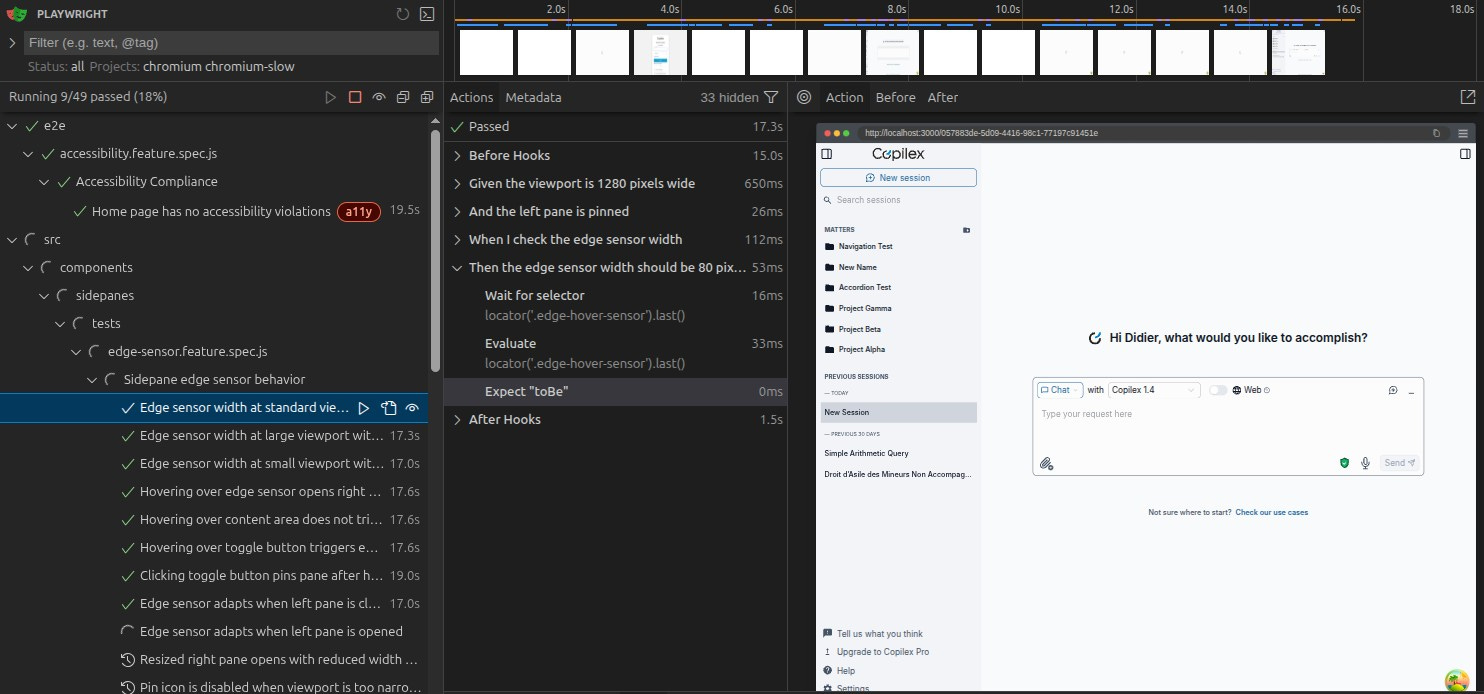
e2e:ui: Opens Playwright’s test UI. You simply double-click on any test to run it, and see the results in the browser.
e2e:bddgen: Reads your Gherkin feature files and checks all the steps have an implementation, and if not generates the skeleton for those steps. We do it before running the tests to ensure that we did not add something in the feature files that we forgot to implement in the steps files.
Create a Browser Use and Automation skill
Claude skills are a way to extend Claude Code’s capabilities by adding a prompt that will be loaded when Claude is working in a specific context. In our case, we want to create a skill that will be loaded when Claude is working on end-to-end testing of the application.
This takes the form of a markdown file we put in the .claude/skills/browser-use-and-automation/SKILL.md.
---
name: Browser Use and Automation
description: Browser automation with Playwright and Playwright MCP. Use when user wants to create end to end (e2e) tests of the application, or for debugging the UI part of the application or perform any browser-based testing.
version: 1.0.0
author: Didier Marin
tags: [testing, automation, browser, e2e, playwright, web-testing]
---

# Log in a test user with Playwright browser automation

- Navigate to `http://localhost:3000/login`
- use the fill form tool with PLAYWRIGHT_EMAIL_1 as the Email address and PLAYWRIGHT_PASSWORD_1 as the password (those are secret keys that will be automatically replaced by their corresponding value)
- Use the click tool on the "Continue" button
- Keep the browser open for you to continue interacting
- Report success or any errors to the user

# Creating or modifying e2e tests

In that case, please refer to e2e/README.md for explanations about our E2E test setup.
In particular, look at the `# Writing end-to-end tests` section and follow the procedure described there
Explaining the workflow to Claude Code
The e2e/README.md file will document how we do the end-to-end testing for the application, for Claude Code to use (and for humans developers!).
End-to-end tests with Playwright BDD
Our end-to-end tests are written with the help of the Playwright BDD framework.
The e2e folder (this folder) contains the global setup for the tests:
Global setup file e2e/global-setup.ts that runs once before all tests and resets the test user quotas
Fixtures file e2e/fixtures.ts that automatically logs in the test user before each test
Shared step files e2e/shared.steps.ts that implement shared steps for all features
Each feature or component in our application may have a tests sub-folder which contains:
Step files tests/<bdd-feature-name>.steps.ts that implement the steps for each corresponding feature file
Shared step files tests/shared.steps.ts that implement shared steps for the feature or component
See also playwright.config.ts for the configuration of the tests, which is located in the parent folder.
Installation
Playwright needs to be installed:
pnpm exec playwright install
Test User Configuration
We use test users that are already signed up and ready to used for the tests.
The user credentials are stored in environment variables PLAYWRIGHT_EMAIL_1 and PLAYWRIGHT_PASSWORD_1.
Load them from .env.e2e.
Note: If tests run sequentially (workers: 1), only one test user (_1) is needed. If that number of workers in playwright.config.ts is higher than 1, add additional test users with corresponding suffixes (_2, _3, etc.).
Running tests
Run all end-to-end tests:
pnpm run e2e
Run a specific test:
pnpm run e2e:grep "Name of the scenario"
View test report:
pnpm exec playwright show-report
Debug tests with Playwright UI (see video, console logs, etc.):
pnpm run e2e:ui

# Can also filter which scenarios will be listed (it won't run them directly, only list them), e.g.,
pnpm run e2e:ui -- viewing-and-editing
pnpm run e2e:ui -- viewing-and-editing-documents.feature:10
Writing a new end-to-end test
The user should provide a rough outline of the scenarios that they intend to test.
Create a tests folder in your feature/component directory (if it doesn't exist)
Create a *.feature file with Gherkin syntax to describe the scenarios that they intend to test:
The file name should be the name of the feature or component, or of the scenario if there are already feature files, e.g., viewing-and-editing.feature in the documents feature.
Reuse the existing steps whenever possible: run grep "\(Given\|When\|Then\)(" **/shared.steps.ts to list all shared steps that are implemented. Those will be automatically discovered by Playwright BDD, so no need to import them in the step file.
IMPORTANT: Ask the user to review the feature file and provide feedback on the scenarios and steps.
Once the user is happy with the feature file, do NOT write any code yet. Instead, use Playwright MCP to manually perform the scenarios and take notes on the selectors and actions that you need to implement in the step file (write those down in a markdown file). It is very likely that the steps will need to be adjusted to how the UI actually works, so update the feature file accordingly.
Based on your notes, add all necessary ARIA attributes in order to make selection more straightforward, while making the application more accessible at the same time.
Check with the user that the changes made to the feature file are OK.
Run pnpm run e2e:bddgen to generate snippets for the new steps.
Fill in the new steps in the generated .steps.ts file, using your notes from the previous step.
Run the test with pnpm run e2e -- <feature-file-name>.feature or pnpm run e2e:grep "Name of the scenario" for a specific scenario (if there are more than one).
Fix any issues until the test passes. Keep the Playwright MCP open to help you debug any issues quickly, as this will be faster than re-running the tests multiple times!
When the test passes, ask the user for review.
Check any refactoring that could be done to improve the test, e.g. a step that is duplicated in multiple places, a step that is not DRY, etc.
Ask the user for final review, and if they are happy, you may close the Playwright MCP.
Modifying an existing end-to-end test
Follow a similar process to writing a new end-to-end test:
Understand the changes that need to be made
Adapt the feature file to reflect the changes
Manually perform the updated scenarios
Update the feature file and step file to reflect the changes
The most interesting bit is the section that describes a complete workflow on how to create new end-to-end test scenarios, starting from just a rough description (that is a voice memo of me rambling about it) and guiding Claude Code through the process. The key part is telling Claude Code to “manually perform the scenarios” and take notes on the selectors and actions that you need to implement in the step file.
Thanks to this workflow, I can create many end-to-end test scenarios and not just for the most critical ones, as Claude Code takes care of the boring work of finding the proper selectors and implementing the steps.
Limitations
Of course, there are limitations to this workflow, it rarely does 100% of the work without some feedback on my part.
One limitation is how Claude tends to create slightly different steps (e.g., “I should remain on the login page” and “I am on the login page”) that are effectively the same. Similarly, Claude would not refactor Playwright code that was repeated over and over again in various steps, even though I explicitly tell it to use a shared step file e2e/shared.steps.ts. That said, I can guide Claude Code to refactor and consolidate code when needed. But I think it highlights the importance of having an experienced developer in the loop, and strong guidelines when it comes to how you describe your test scenario in a structured way.
Conclusion
Claude Code is a powerful tool to generate entire features or components. It works even better with a test feedback loop to guide the implementation. In this post I showed how you can build end-to-end testing of a web application with the help of Claude Code, and grounded on a human-readable description of the scenario you are testing.
As I alluded to in the intro, there are still many possibilities to explore and go towards a full “Specification-Driven Development” workflow, where you start by writing the specifications in a human-readable format, and then let Claude Code generate both the code and the tests.
Thanks for reading Didier’s Substack! Subscribe for free to receive new posts and support my work.
The BDD + Playwright + Claude Code combo is solid. I've been using Playwright for browser automation in my agent workflows and the reusability of steps is a game-changer.
One thing I'd add: when your agent generates and runs tests autonomously, you need a way to see what passed and what broke without digging through terminal output. That visibility problem pushed me to build a proper dashboard for my agent's work: https://thoughts.jock.pl/p/wiz-1-5-ai-agent-dashboard-native-app-2026
The limitation you mention - Claude creating functionally equivalent but different steps - is real. My workaround: strict skill files that enforce naming conventions. Helps with deduplication across sessions.

The BDD + Playwright + Claude Code combo is solid. I've been using Playwright for browser automation in my agent workflows and the reusability of steps is a game-changer.
One thing I'd add: when your agent generates and runs tests autonomously, you need a way to see what passed and what broke without digging through terminal output. That visibility problem pushed me to build a proper dashboard for my agent's work: https://thoughts.jock.pl/p/wiz-1-5-ai-agent-dashboard-native-app-2026
The limitation you mention - Claude creating functionally equivalent but different steps - is real. My workaround: strict skill files that enforce naming conventions. Helps with deduplication across sessions.